

 Authenticate
 Manage Users
 Customize
 Auth0 AI
 Platform
Documentation Index
Fetch the complete documentation index at: https://docs-staging-docs-update-privilege-worker-ea-rollout.mintlify.app/llms.txt
Use this file to discover all available pages before exploring further.
Before you start
Your Auth0 plan or custom agreement must include Enterprise Connections to use this feature. To learn more, read Auth0’s Pricing Page.Postman must be installed on a local machine to test your Inbound SCIM connections.
Google Workspace user provisioning is supported through Directory Sync. To sync users from Google Workspace to Auth0, read Sync Google Workspace Users to Auth0 with Directory Sync.
Enable Inbound SCIM for an Enterprise Connection
- Launch the Auth0 Dashboard, then choose the tenant you want to configure.
- Navigate to Authentication > Enterprise, then select from SAML, OpenID Connect, Okta Workforce, or Microsoft Azure AD.
- Choose an existing connection or create a new one using Create Connection.
- Under the Provisioning tab for your connection, toggle Sync user profile attributes at each login to Off, then switch Sync users and groups using SCIM to On.
- Select the Setup tab under Sync users and groups using SCIM to get the SCIM endpoint URL and SCIM tokens needed for testing with Postman.
Test with Postman
You can download the Postman collection below to test your SCIM configuration:- Launch Postman, then select File > Import… and move the downloaded file into the import dialog box.
- Select the SCIM 2.0 Tests collection, then choose the Variables tab.
- Copy the SCIM Endpoint URL value from the Auth0 Dashboard and paste it into the Current Value field next to the SCIM-ENDPOINT-URL variable.
- In the Auth0 Dashboard choose Generate New Token, then pick Generate Token and select Copy and Close.
- Switch back to Postman, select the Authorization tab, and paste the token value into the Token field.
- Choose Save.
- Run the tests in the order shown, noting that the Users - POST command must be run prior to running the Groups tests to ensure a valid user exists. The result of each user and group operation can be viewed in your Auth0 Dashboard under User Management > Users and User Management > Enterprise Groups. Details for each SCIM operation can be viewed in the tenant logs under Monitoring > Logs.
Supported SCIM Operations
Auth0 supports the following SCIM 2.0 operations for managing users and groups:| Resource | Command | Description |
|---|---|---|
| User | POST | Creates a user in Auth0 with attributes from the SCIM 2.0 core schema and enterprise schema extension, described in RFC7644 Section 3.3. |
| User | GET | Retrieves a user that has already been created in Auth0, using their user ID value in Auth0 and described in RFC7644 Section 3.4.1. |
| User | PUT | Replaces a user in Auth0 with attributes from the SCIM 2.0 core schema and enterprise schema extension, described in RFC7644 Section 3.5.1. |
| User | PATCH | Updates a user in Auth0 with attributes from the SCIM 2.0 core schema and enterprise schema extension, described in RFC7644 Section 3.5.2. |
| User | PUT (Deactivate) | Replaces a user stored in Auth0 and sets the SCIM active attribute to false, which results in the user being blocked in Auth0. |
| User | PATCH (Deactivate) | Updates a user stored in Auth0 and sets the SCIM active attribute to false, which results in the user being blocked in Auth0. |
| User | SEARCH | Searches for a user in Auth0 using a SCIM filter, described in RFC7644 Section 3.4.2. Supported operators are Equals (EQ), and (AND), and or (OR). |
| User | DELETE | Deletes a user in Auth0, using their user ID value in Auth0, described in RFC7644 Section 3.6. |
| Group | POST | Creates a group in Auth0 with attributes from the SCIM 2.0 core schema, described in RFC7644 Section 3.3. |
| Group | GET | Retrieves a group that has already been created in Auth0, using their group ID value in Auth0 and described in RFC7644 Section 3.4.1. |
| Group | PUT | Replaces a group in Auth0 with attributes from the SCIM 2.0 core schema, described in RFC7644 Section 3.5.1. |
| Group | PATCH | Updates a group in Auth0 with attributes from the SCIM 2.0 core schema, described in RFC7644 Section 3.5.2. |
| Group | SEARCH | Searches for a group in Auth0 using a SCIM filter, described in RFC7644 Section 3.4.2. Supports the Equals (EQ) operator. |
| Group | DELETE | Deletes a group in Auth0 using the group ID value, described in RFC7644 Section 3.6. |
SCIM endpoints and tokens
Each enterprise customer gets a connection-specific SCIM endpoint and token that allows them to securely provision, de-provision, and manage their connection-specific users and groups stored in the Auth0 tenant. The endpoints and tokens are visible and configurable in the at Authentication > Enterprise > [connecton-type] > [your-connection] > Provisioning > Sync users and groups using SCIM > Setup.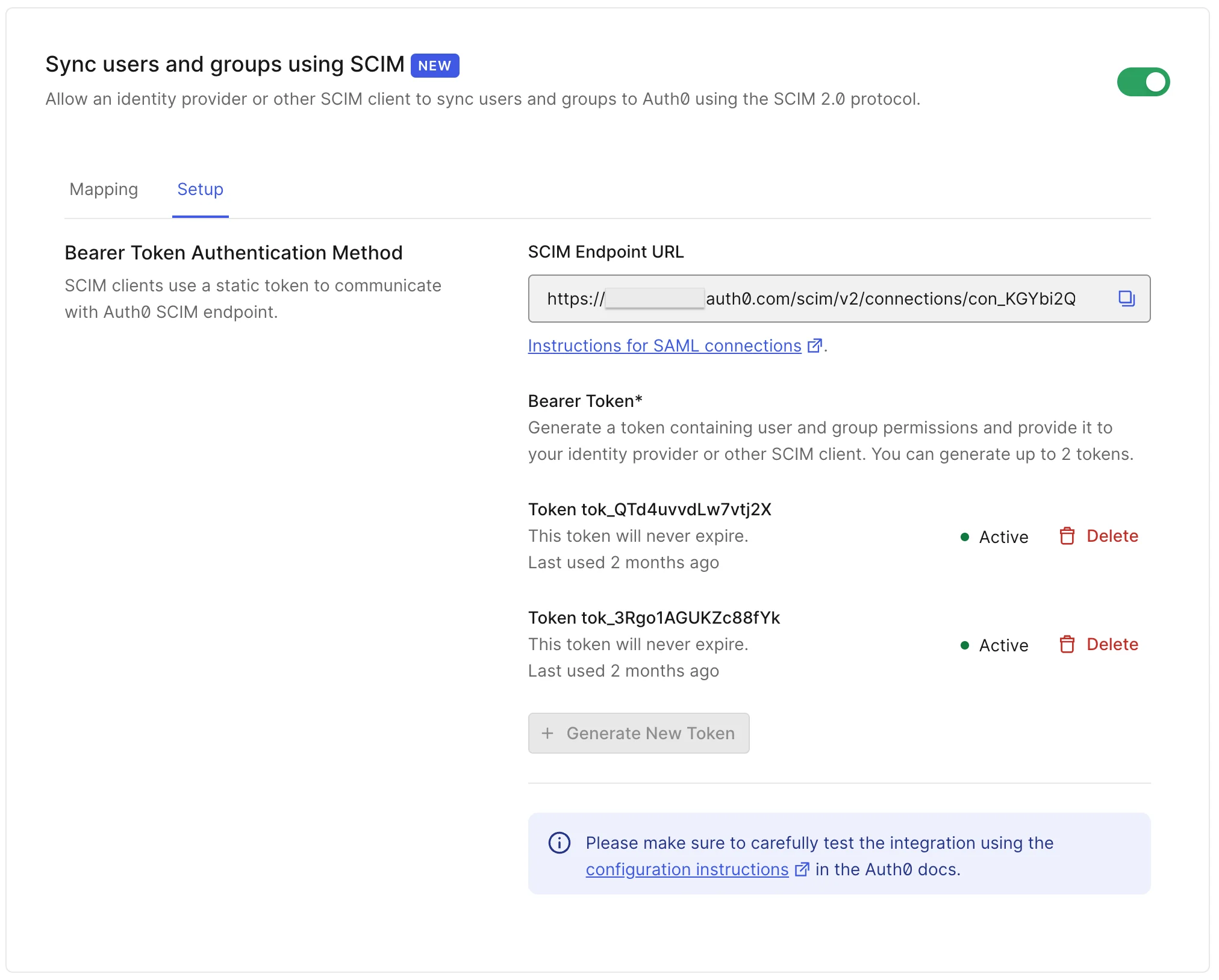
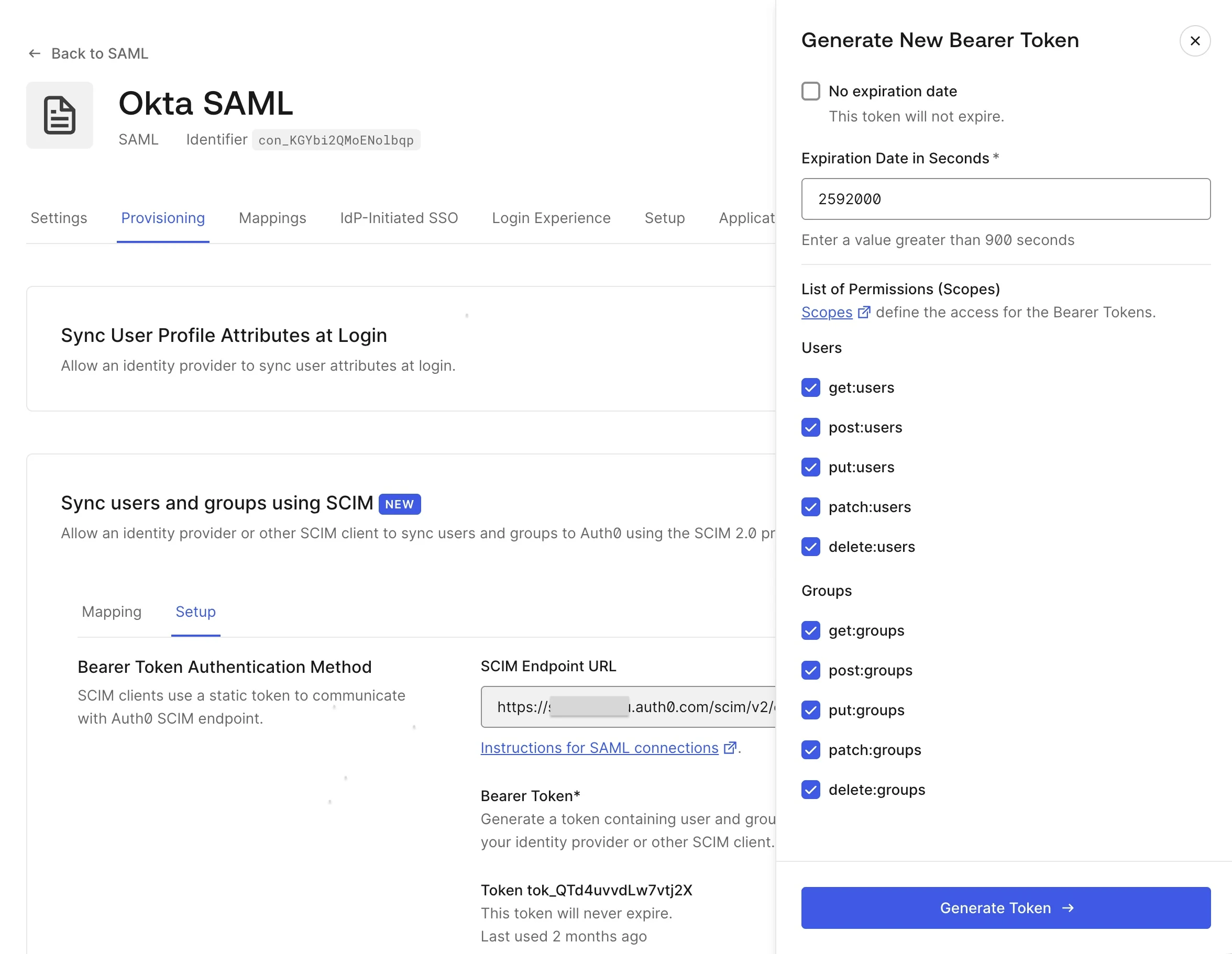
- No expiration date: Select whether the token expires or not.
- Expiration date in seconds: if the token has no expiration date, you can choose an expiration time for the token. When the token expires, the SCIM endpoint will return an error response the next time it is used. The minimum allowed expiration time is 900 seconds.
-
List of permissions (scopes): details which SCIM operations may be performed using this token. The available permissions are:
- get:users - Allows users to be retrieved and searched.
- post:users - Allows users to be created
- put:users - Allows users to be updated using the PUT method.
- patch:users - Allows users to be updated using the PATCH method.
- delete:users - Allows users to be deleted.
- get:groups - Allows groups to be retrieved and searched.
- post:groups - Allows groups to be created
- put:groups - Allows groups to be updated using the PUT method.
- patch:groups - Allows groups to be updated using the PATCH method.
- delete:groups - Allows groups to be deleted.
Session revocation and backchannel logout
When Auth0 receives a SCIM message to deactivate and block a user, it terminates all Auth0 sessions for the user, revokes , and (if configured) triggers OpenID Connect backchannel logout for your applications.Logs
You can view the full details of all the SCIM requests that Auth0 receives in the Monitoring > Logs section of the Auth0 Dashboard. Note that any POST or PUT operation for a Group with over 1,000 members in the request body will not have the members attribute appear in the logs, due to log size limitations. For information on how to sync SCIM-provisioned users, groups, and group memberships from Auth0 to external systems, read Sync Users and Groups to External Systems.User Provisioning Options
View the sections below for guidance on how to configure attribute mapping between the SCIM schema and Auth0 user profiles, and how SCIM-provisioned users can be used with other Auth0 features.User attribute mapping
Each new connection uses the default attribute map found in the Auth0 Dashboard at Authentication > Enterprise > [connecton-type] > [your-connection] > Provisioning > Sync users and groups using SCIM > Mapping, where the map can be edited and customized to fit your connection’s needs. Core SCIM user attributes defined in RFC 7643 sections 3.1, 4.1, and 4.3 may be used.| Notes | |
|---|---|
| One-to-one mapping | A selected SCIM attribute (or sub-attribute) can only be mapped to one Auth0 attribute. |
| Sub-attribute mapping | Sub-attribute values within multi-value SCIM attributes such as emails and phoneNumbers can be referenced using SCIM filter syntax with the eq operator. See the default attribute maps for examples. |
| Unmappable attributes | The SCIM id and meta attributes cannot be mapped, as they are only sent by Auth0 in the SCIM protocol responses. The id value in SCIM responses is always set to the Auth0 user_id, and the SCIM password attribute is not usable for Enterprise connections. |
| Omitting SCIM attributes | If a specific SCIM attribute is not configured to be handled in your attribute map, it will be ignored in all SCIM requests and responses. |
| Notes | |
|---|---|
| One-to-one mapping | A selected Auth0 attribute can only be mapped to one SCIM attribute. |
| Root attribute mapping | When mapping to root attributes, note that only the root attributes listed in User profile attributes can be searched using a SCIM query. If you need an attribute to be searchable that is not in this list, place it in app_metadata. |
| Metadata attribute mapping | The use of user_metadata is allowed, but generally not recommended for synchronized attributes as it is intended to store attributes that can be edited directly by the end user. Use app_metadata or root attributes instead. |
| Blocked attribute behavior | The mapping to the Auth0 blocked attribute has a special behavior when it is mapped to the SCIM active attribute. When active contains a value of true or false, Auth0 reverses the value and sets Auth0 blocked attribute to false or true, respectively. |
Sync additional attributes at login
If you are integrating with an identity provider that does not support the same set of user attributes across /OIDC, and SCIM, you can access the additional attributes by enabling Sync user profile attributes at login in parallel with SCIM provisioning. When Sync user profile attributes at login is enabled, all root attributes on the user profile are overwritten each time a user logs in. To avoid potential conflicts between SCIM and login sync, follow these guidelines:- Ensure common Auth0 root attributes like
emailandusernameare mapped in your SAML or OpenID Connect attribute map if they are also present in your SCIM attribute map. - In your SCIM attribute map, map all of the other SCIM attributes (except the
activeattribute) to values inside the Auth0app_metadataattribute.
Sync roles as a user attribute
Auth0 supports syncing the SCIM 2.0roles user attribute as defined in RFC7643. To accept roles, ensure the SCIM attribute map for your connection maps the SCIM roles attribute to an Auth0 user attribute like app_metadata.roles.
To learn how to sync application-specific roles from Okta Workforce Identity, read How to Add Multi-value Roles in SCIM Cloud Integration. For Microsoft Entra ID roles, read Customize user provisioning attribute-mappings for SaaS applications in Microsoft Entra ID.
To learn how to assign Auth0 roles to groups provisioned via SCIM, read Group Provisioning Options.
Organization membership
For SCIM-provisioned users to become members of an Organization, the connection must be configured to Enable Auto-Membership as described in Grant Just-In-Time Membership to an Organization Connection.User account linking
When using user account linking, the SCIM-provisioned user account must be set as the primary user account. Setting as a secondary account will change the SCIMid attribute which goes against the SCIM 2.0 core schema specification. Account linking Enterprise user accounts to social and personal user accounts is not recommended.
Group Provisioning Options
View the sections below for guidance on how to use SCIM-provisioned groups for authorization, and how SCIM-provisioned groups can be used with Auth0 organizations.Use groups with roles
Groups pushed from Enterprise identity providers can be assigned to core authorization roles in Auth0. When assigned, all members of the group inherit the assigned role when they log in. For more information, read Assign Roles for Enterprise Groups. Note the tenant-level entity limits for Enterprise groups and core authorization roles in the Entity Limit Policy.Use groups with organizational roles
Similar to the above, groups pushed from Enterprise identity providers can be assigned to roles within an organization. When an organization member logs in, they inherit any organization roles assigned to the synced groups they are a member of. If you are looking to represent customers or partners in a B2B or SaaS application, we recommend representing them as Organizations and using groups and roles within this context. For SCIM-provisioned users to become members of an Organization, the connection must first be configured to Enable Auto-Membership as described in Grant Just-In-Time Membership to an Organization Connection. Then organizational roles can be assigned to any groups synced from the Enterprise connections associated with the Organization. For more information, read Assign Roles for Enterprise Groups. Note the organization-level entity limits for Enterprise groups and core authorization roles in the Entity Limit Policy.Use groups in a Post-Login Action
You can use group information pushed from Enterprise identity providers in your post-login actions to make custom access control and authorization decisions in Auth0. For more information, see the documentation for theapi.groups.getUserGroups() and api.groups.hasGroupMembership() functions in Actions Triggers: post-login - API Object.
Sync Users and Groups to External Systems
Use Auth0’s Events feature to sync users, groups, and group memberships outbound from Auth0 into external systems. This allows you to send real-time notifications about changes to users and groups to a custom webhook endpoint, to AWS EventBridge, or to a custom Auth0 Action. To configure outbound users and group sync:- Follow the instructions at Create an Event Stream to create an event stream in the Auth0 Dashboard. Choose from using a custom webhook endpoint, AWS EventBridge, or a custom Auth0 Action as the destination for the events.
- On the configuration page for your event stream, select the desired events to stream for Users and Groups. Selecting all User and Group events is recommended for most cases. To see the information included in each User and Group event, see the Events Catalog.
- After your event stream and desired destination is configured, you can generate user and group events for testing by using the Postman collection provided earlier, or by using an Enterprise identity provider to create, update, or delete users and groups using SCIM.
Deployment Guidelines
Leverage integration galleries for streamlined setup
To give your customers a tailored experience for setting up both SCIM and , consider listing your application in the Okta Integration Network and other workforce identity provider integration galleries that you plan to integrate with. Today Auth0 supports Express Configuration with Okta which automates the set up of OpenID Connect, SCIM, and Universal Logout for apps published to the Okta Integration Network.Use Auth0 Self-Service SSO and User Provisioning
If not using an integration gallery, use Auth0 Self-Service Enterprise Configuration to enable your customers or IDP administrators to configure SCIM directly.Test SCIM in lower-level environments first
Do not enable SCIM in a production Auth0 tenant before thoroughly testing your integration in a development or staging Auth0 tenant.Send SCIM tokens securely
Never send SCIM tokens in plaintext, over email, or via insecure channels. Use a secure communication service like SendSafely or use Auth0 Self-Service Enterprise Configuration to issue SCIM tokens directly to your customers. When using Express Configuration with Okta, the token configuration is automated and not shown.Management API
The configuration of SCIM for an Enterprise connection can be automated using the Auth0 management API. For more information, read Manage an Inbound SCIM Deployment with the Management API. All Enterprise users and groups created in your Auth0 tenant via SCIM can also be searched, viewed, or deleted via the Auth0 Management API. The following Management API endpoints are available:- GET /api/v2/users
- GET /api/v2/users/:id
- GET /api/v2/users/:id/groups
- GET /api/v2/groups
- GET /api/v2/groups/:id
- GET /api/v2/groups/:id/members
- DELETE /api/v2/users/:id
- DELETE /api/v2/groups/:id